> For the complete documentation index, see [llms.txt](https://docs.stackerhq.com/stacker-astra/llms.txt). Markdown versions of documentation pages are available by appending `.md` to page URLs; this page is available as [Markdown](https://docs.stackerhq.com/stacker-astra/customize-layouts/detail-pages/headers.md).
# Headers
Choose what type of header to show on your record layouts.
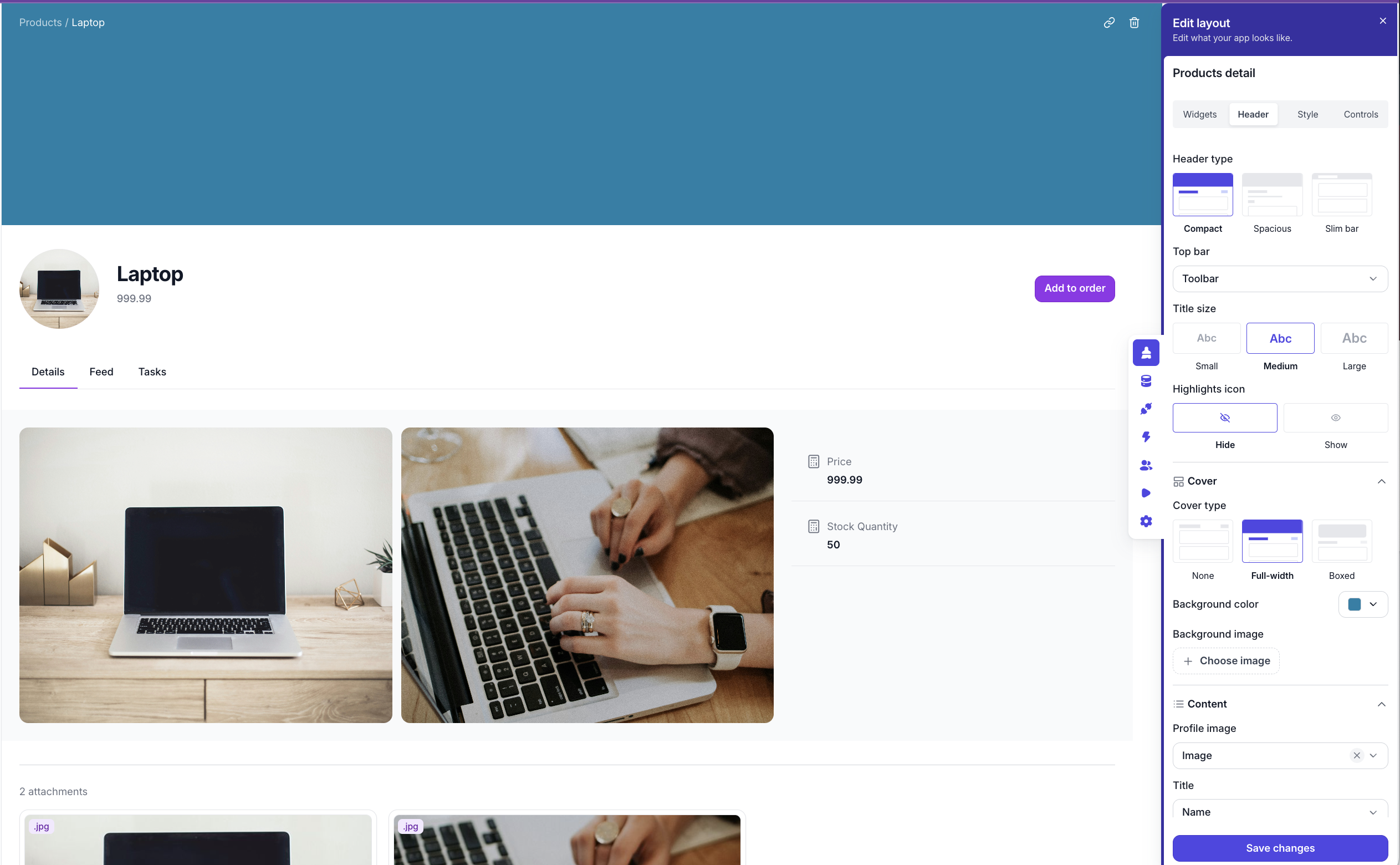
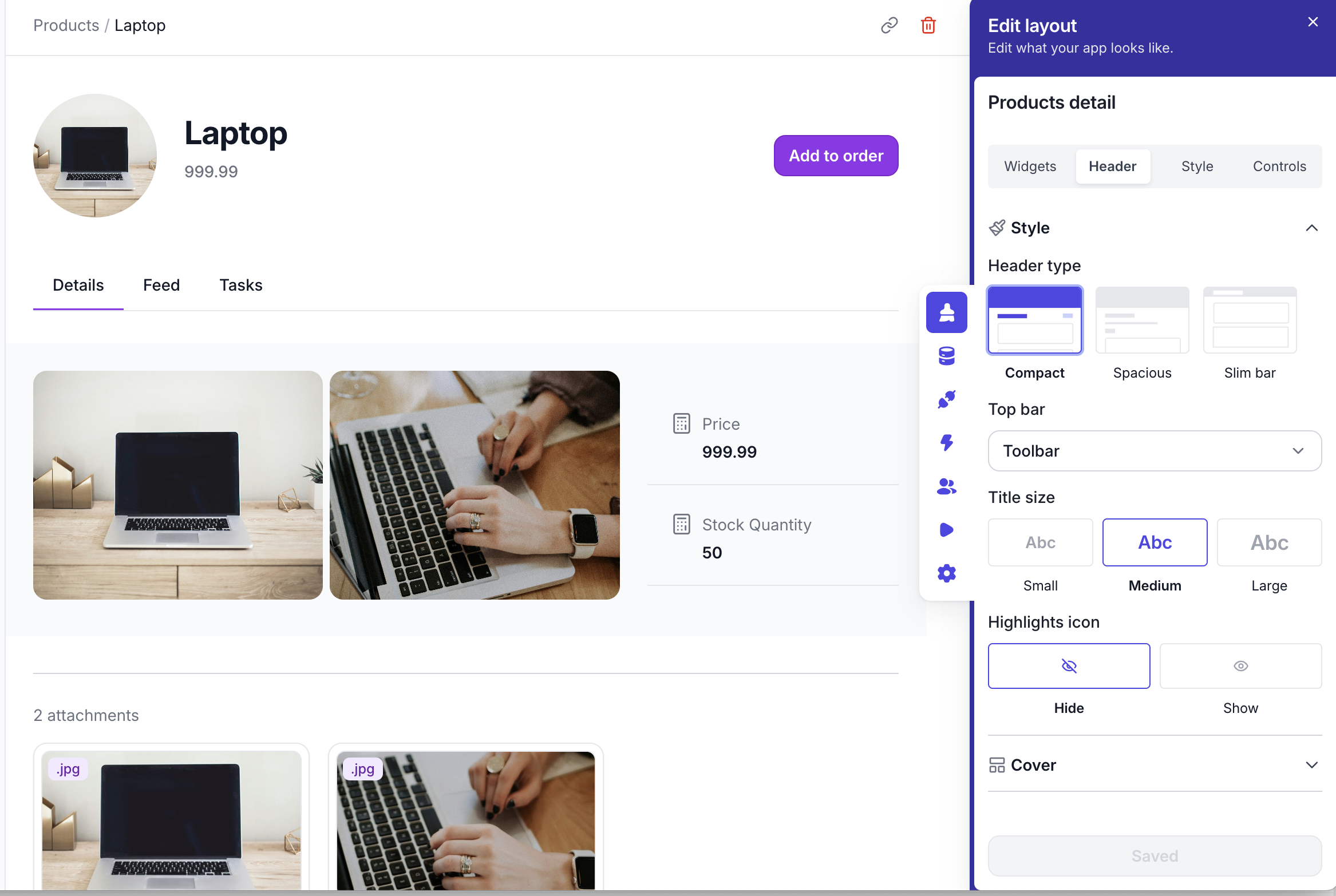
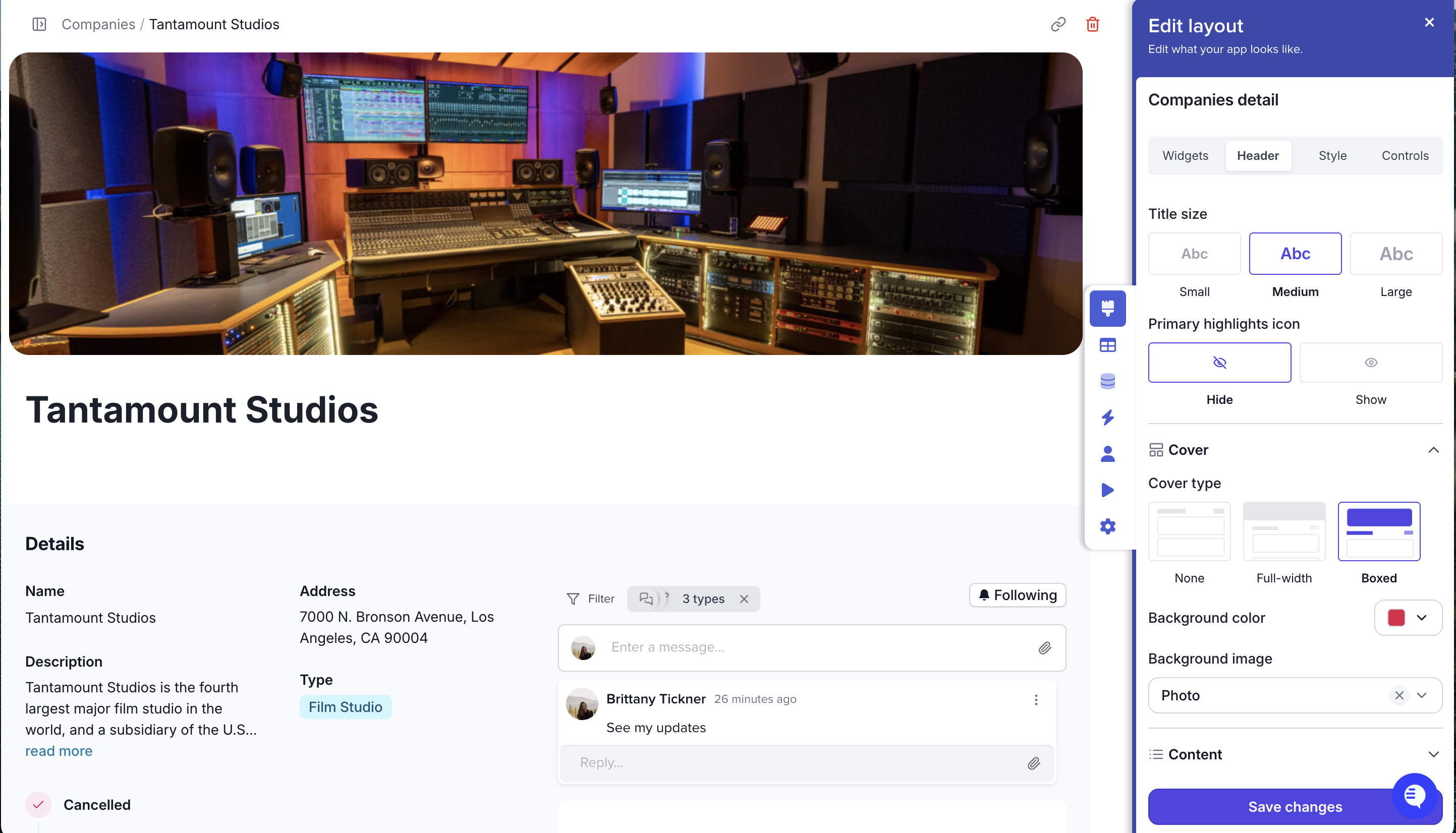
Choose the header type, the top bar that shows, how big the title should be, if you want to add in a larger photo or background color, then add in your content that is important to the page: Title, highlights and quick bits of information. Add an action button to allow users to make quick actions on records.
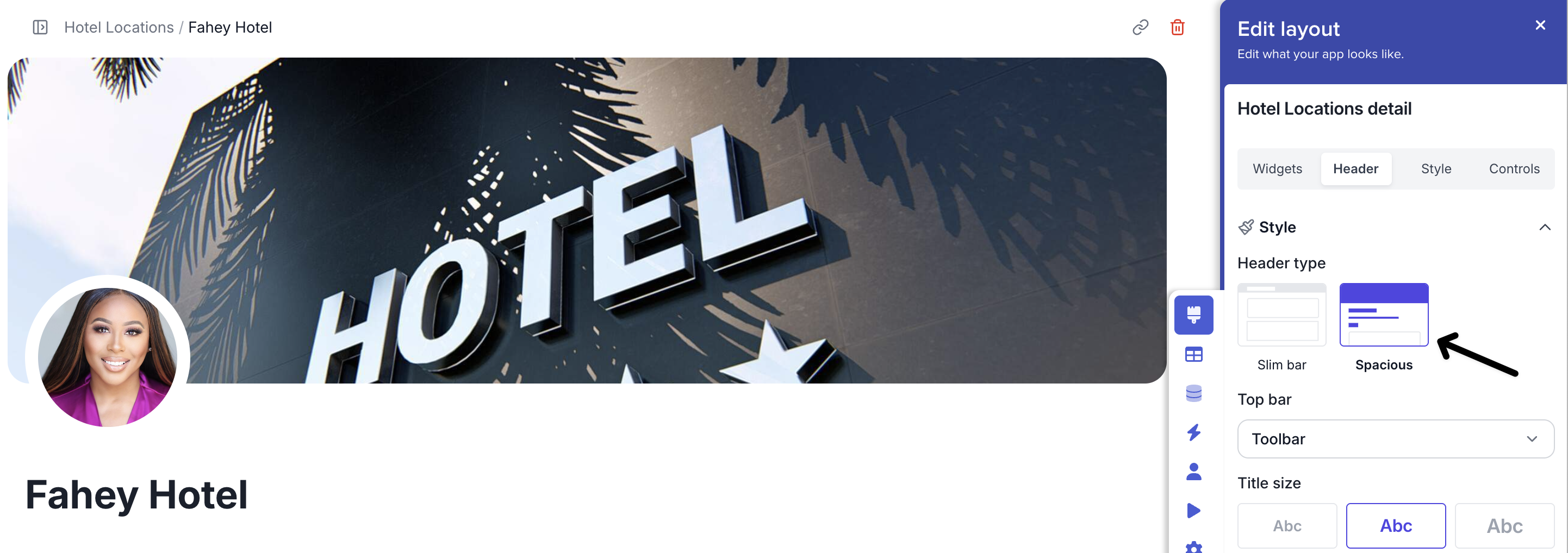
CompactSpacious
Spacious allows you to add a large image over the top of your detail pages
**Top Bar:** Choose toolbar to show the tools on the top or next to the breadcrumbs.
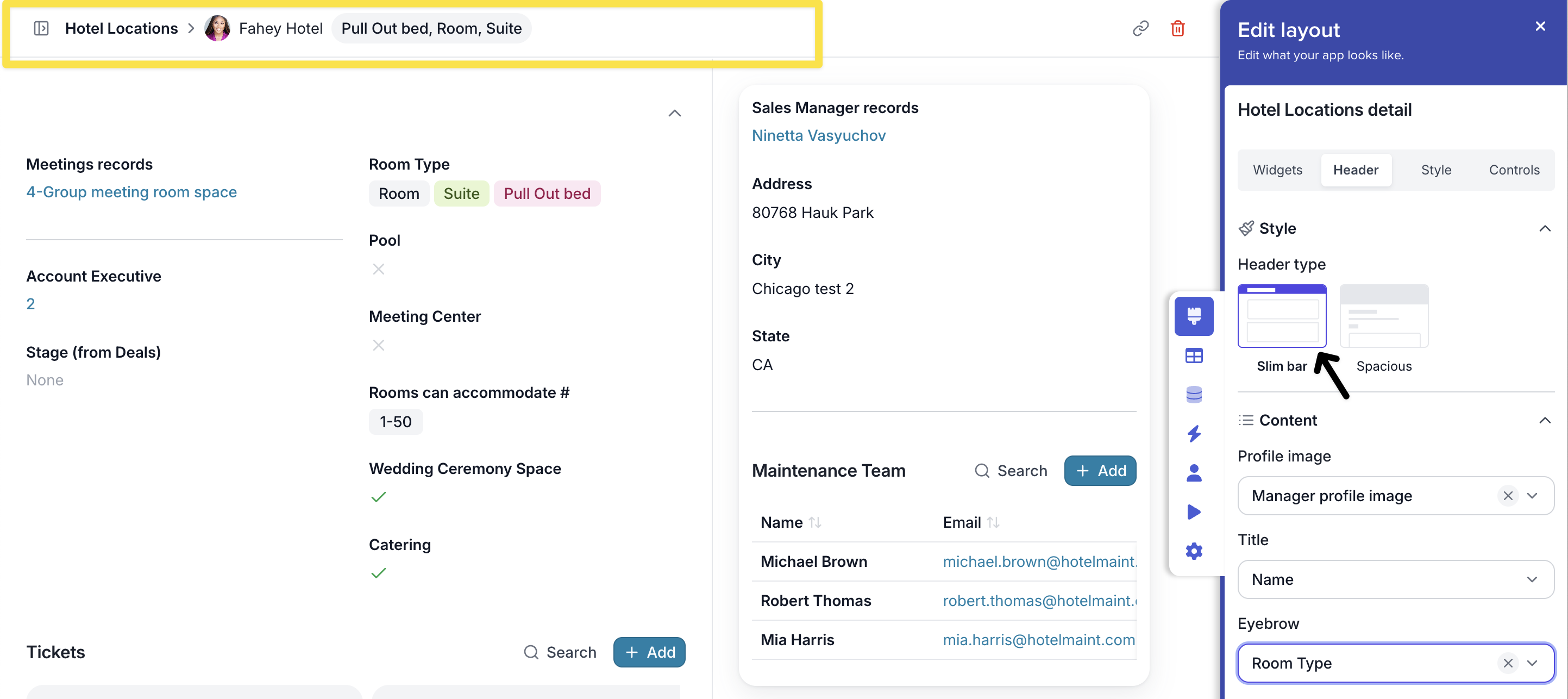
Slim bar
Choose the slim option to have a streamlined header to focus on the content.
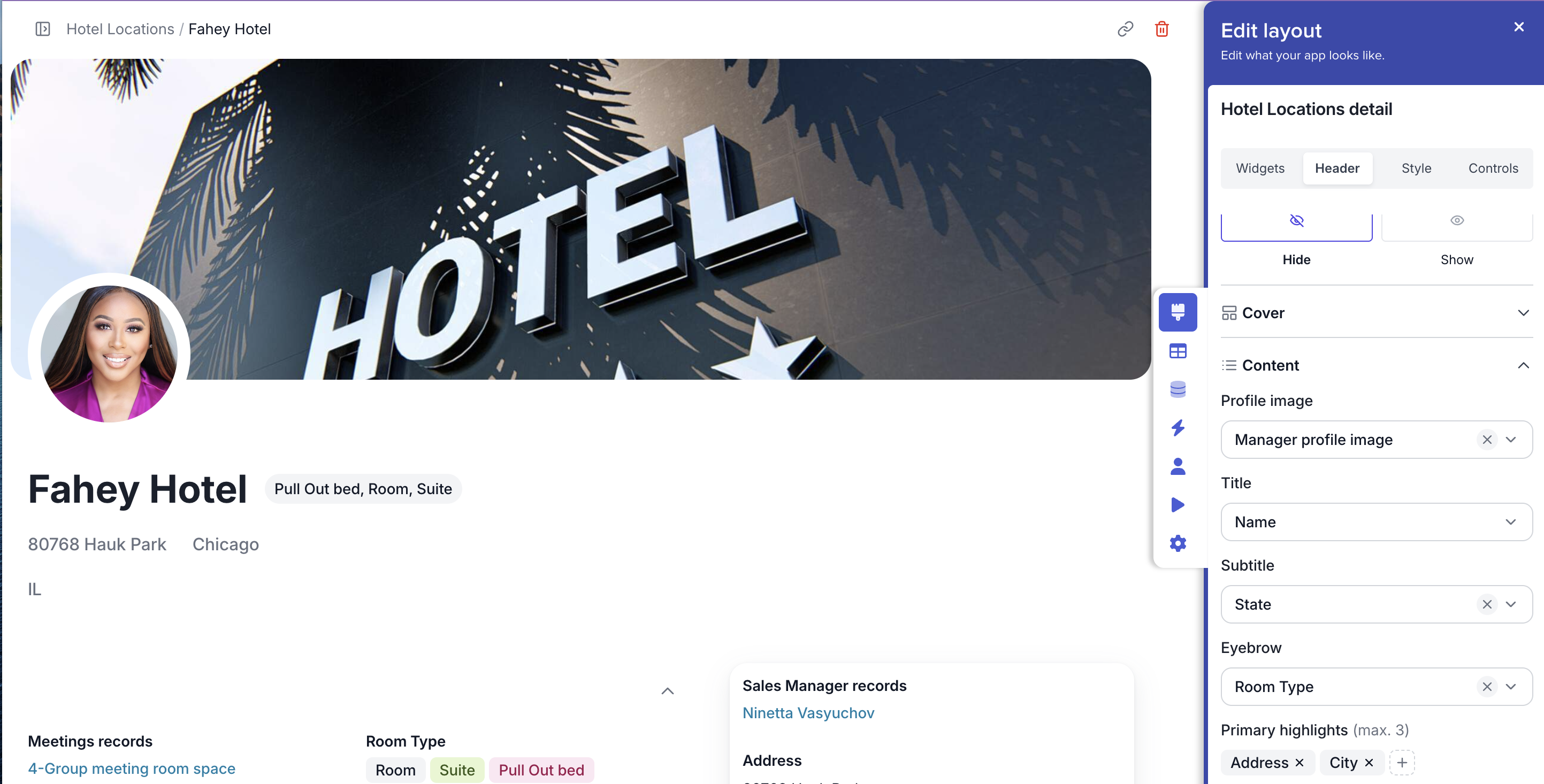
Decide on the Profile image to appear, the title and an eyebrow a piece of information that is important to the record.
### Cover
**Choose your Cover Type**
### Content
**Profile Image**
Choose a profile image to appear on the page as a circle under the header.
**Title**
Choose the field you want to be your record title.
**Subtitle, Eyebrow and Primary highlights**
Choose a field to appear next to the title, under the title and show fields that are important.