> For the complete documentation index, see [llms.txt](https://docs.stackerhq.com/stacker-astra/llms.txt). Markdown versions of documentation pages are available by appending `.md` to page URLs; this page is available as [Markdown](https://docs.stackerhq.com/stacker-astra/workspace-portals-and-apps/workspace/workspace-settings.md).
# Workspace Settings
A workspace consists of apps and groups that can be organized for your company needs.
### Adding Workspace Collaborators
1. Select **Settings**
2. Select **Collaborators**
3. Enter emails and decide what level collaborator they are: Standard or Owner
4. Click **Invite**
### General Workspace Settings
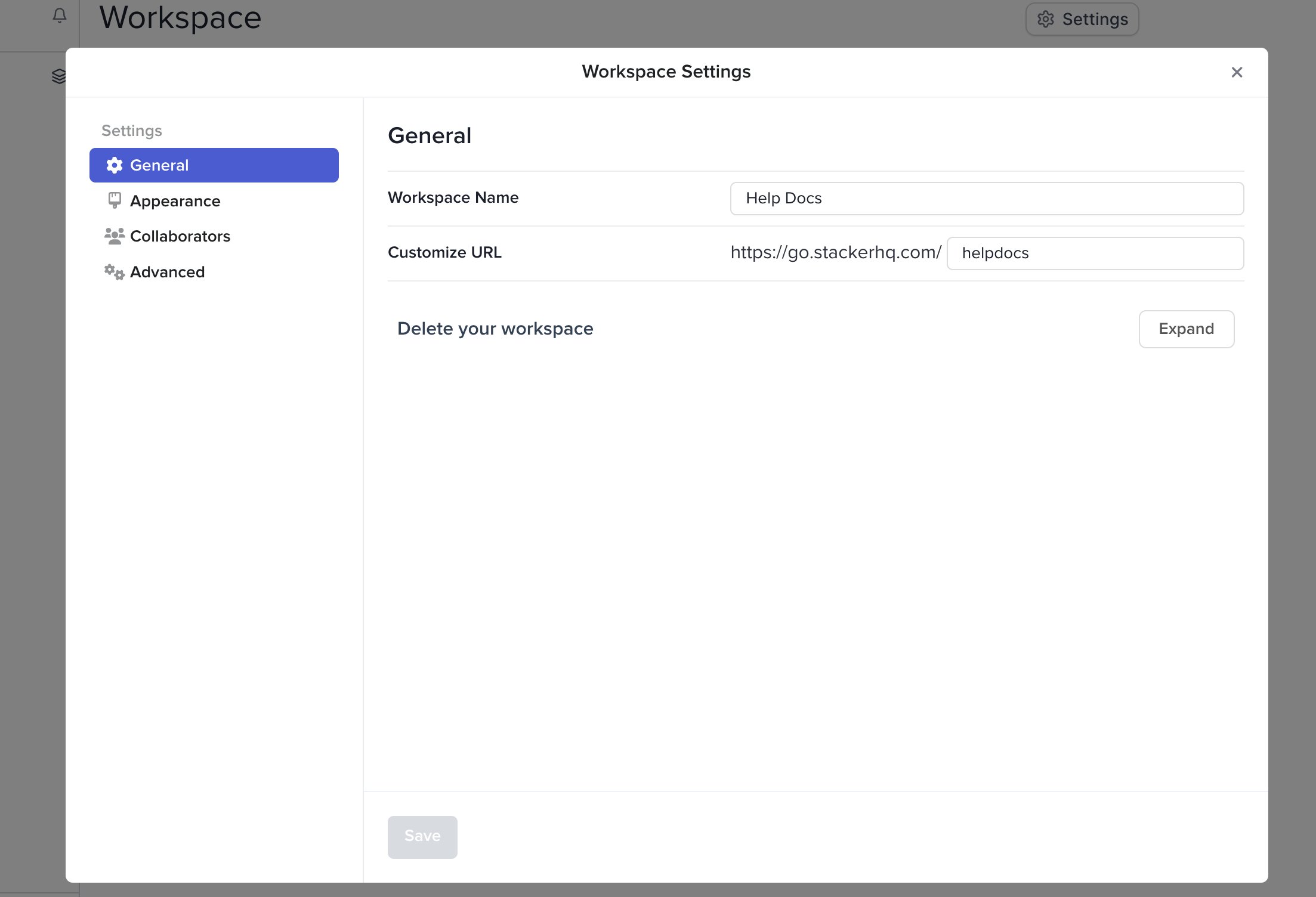
Update the workspace name, customize the workspace URL or delete your workspace (This cannot be undone!).
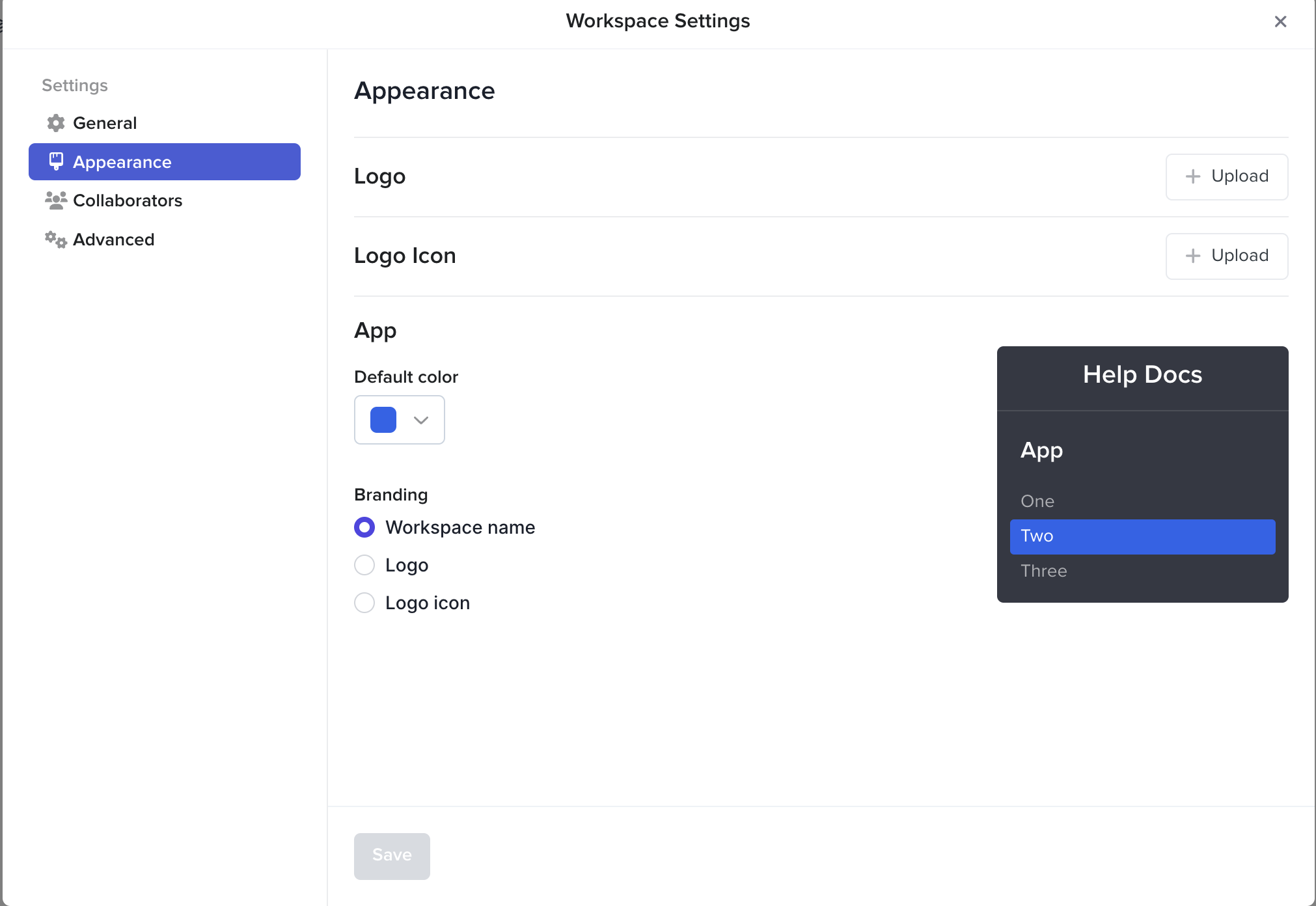
### Appearance
### Advanced
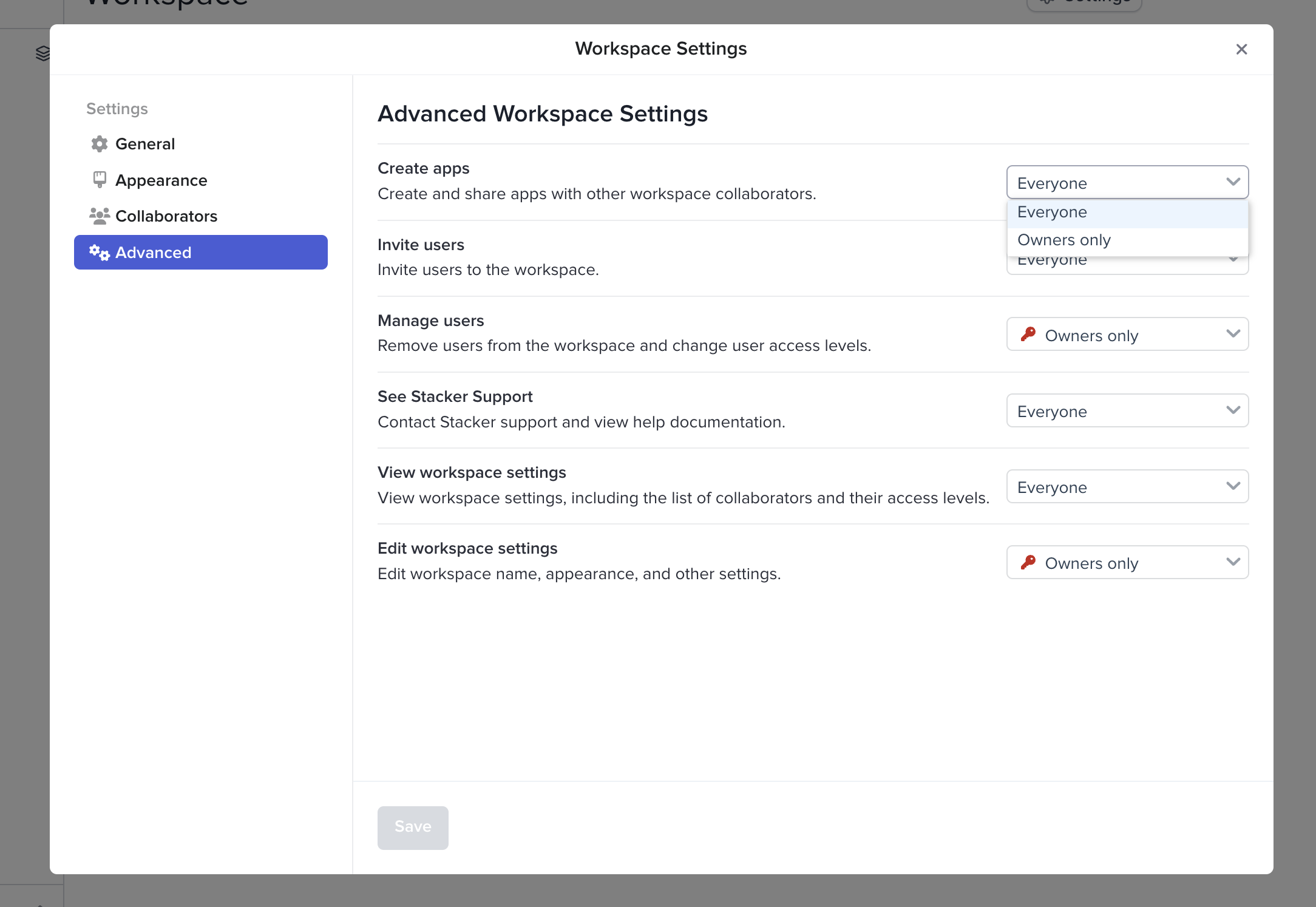
Change the permissions of your collaborators under the Advanced tab.
Select the drop down to choose between "Everyone" and "Owners only" to handle business operations related to your Stacker Workspace.