# Customize your list layouts
Edit your list layouts to customize how data is presented to your users.
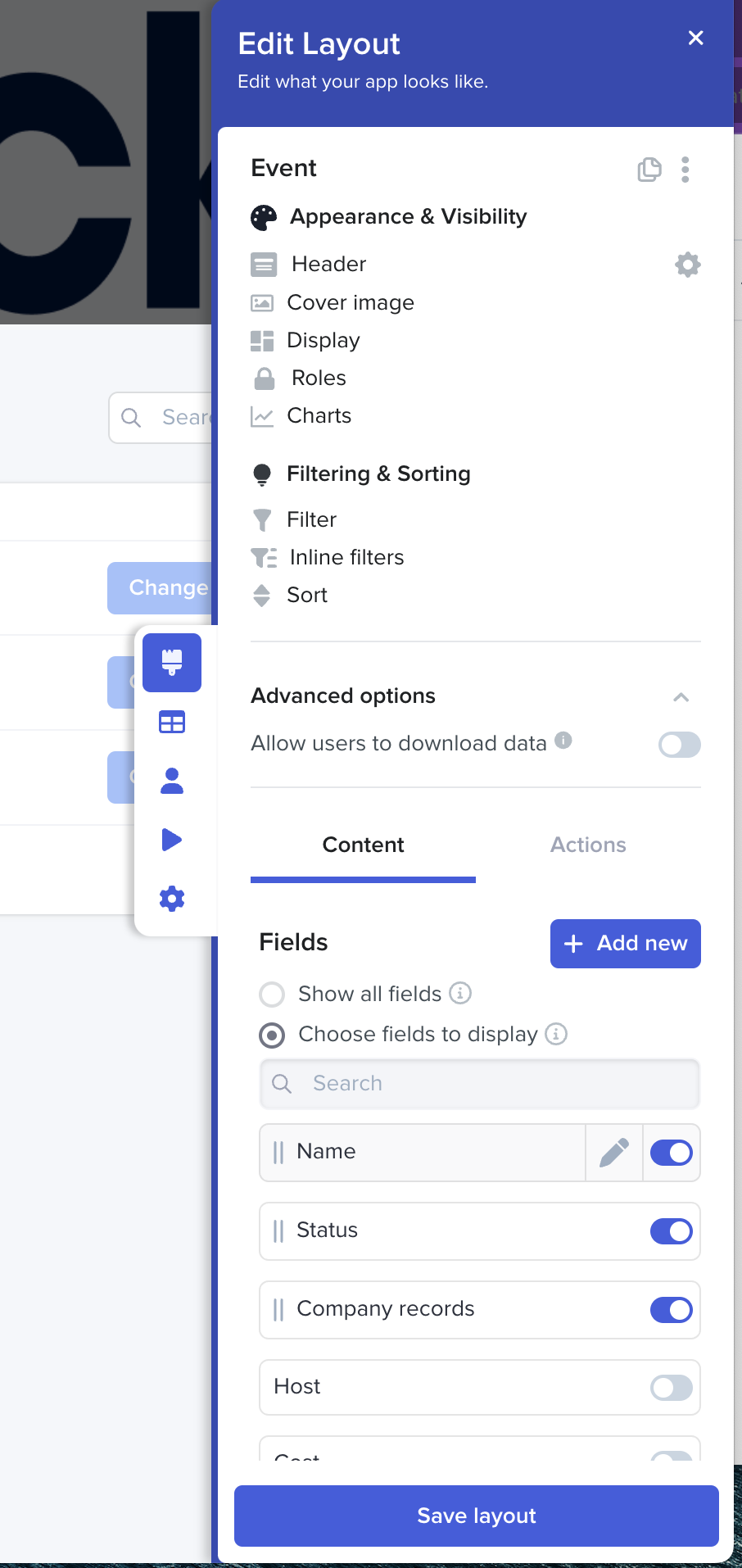
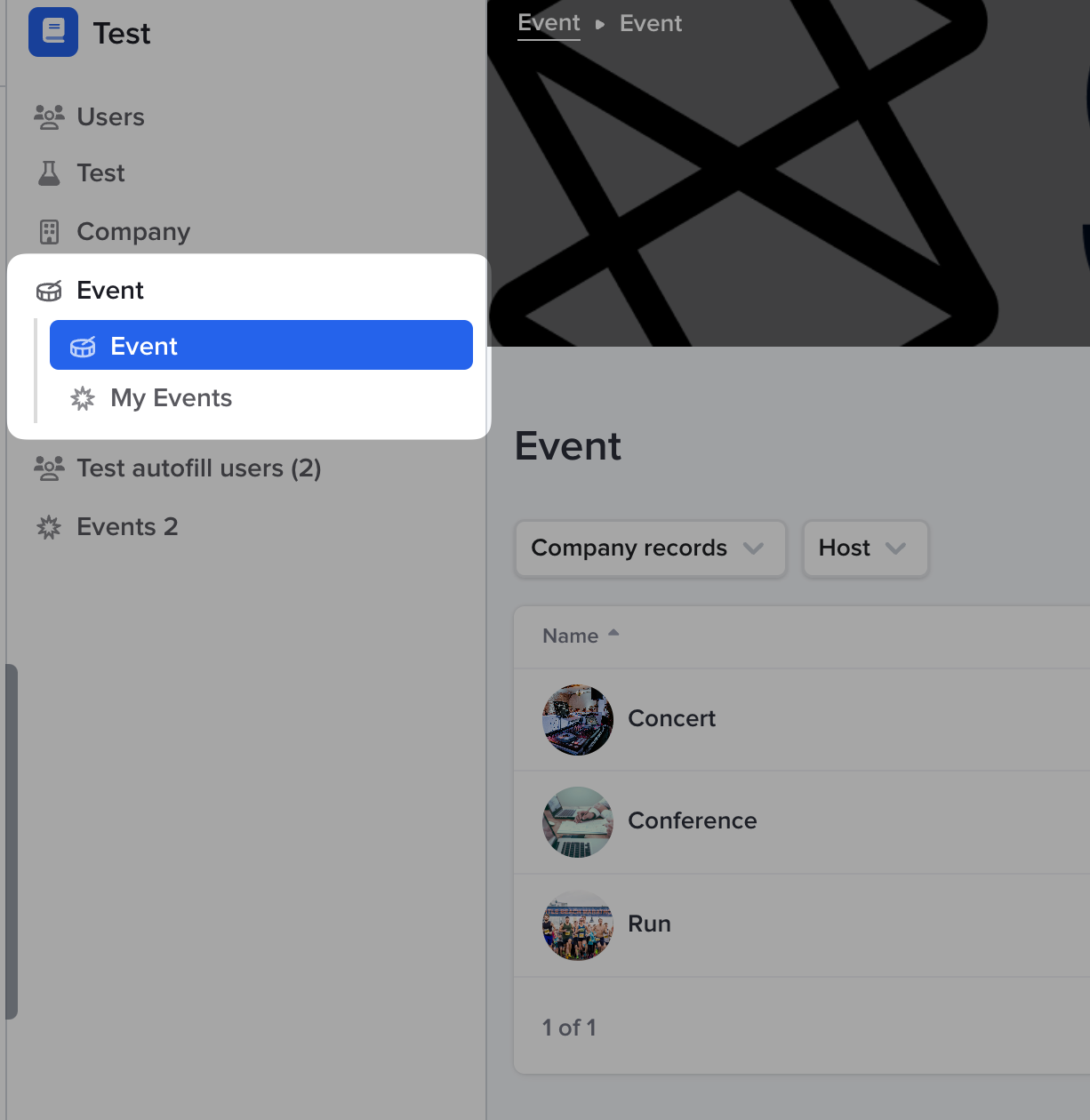
1. Select the list layout you want to edit
2. Select **Edit Layout**
## Header
Choose a photo or color to be the header of your List Layout, add a title and subtext, choose where to align the title and where the toolbar appears on the page.
### Display
Change your layout type by selecting Display . Use a [Table, Cards, Boards, or One Record Only view. ](https://docs.stackerhq.com/stacker/customize-layouts/list-layout/display-types)
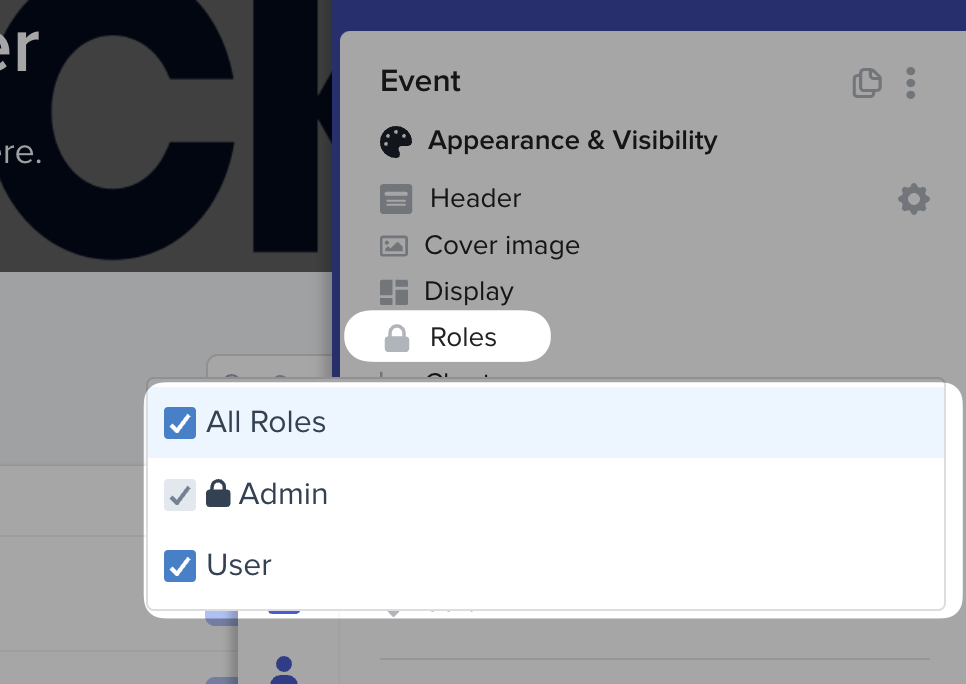
## Roles
Decide the role(s) that can or cannot view a page.
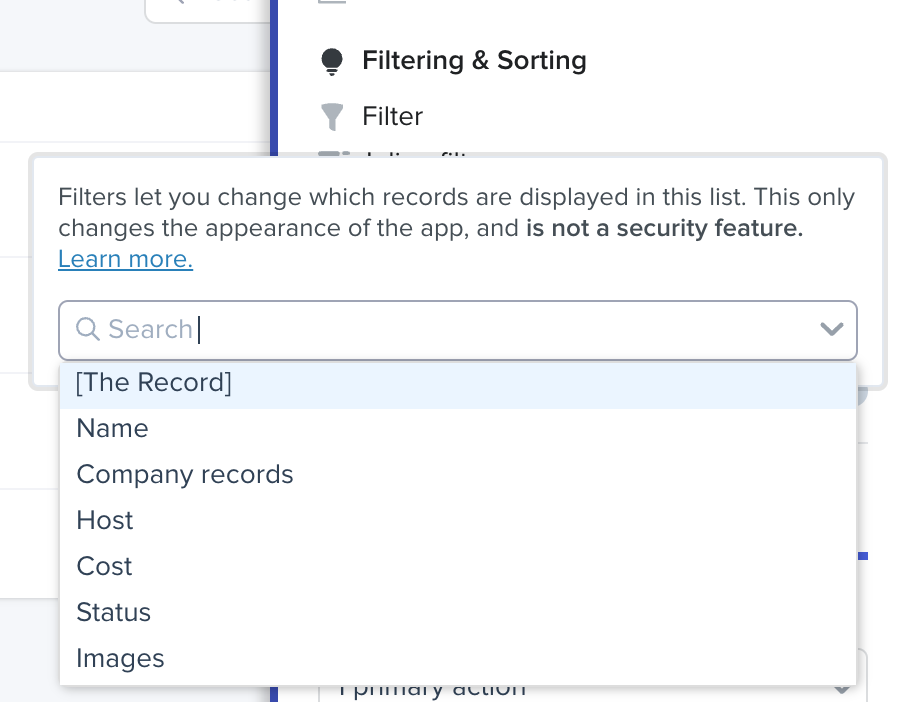
## [Filters](https://docs.stackerhq.com/stacker/security/data-filters/list-layout-filters)
{% embed url="" %}
You can apply filters to a list layout to limit which records will show in the layout based on details about the record or user types. You can limit a list layout to only show records that meet (or do not meet) specific conditions. Filters apply to all users including admins.
* Filters can only use the 'AND' logic. If you have many conditions, then the records must meet all conditions.
* You can filter currency, percentage, roll-up, and formula fields using number operators: **=, <, <=, >, =>** and **≠.**
* Users must have 'read' permissions for the fields used in the filter.
* You can filter using relative date filters (eg. tomorrow, this week, last quarter).
* You can use filters along with duplicating layouts to create different layouts in your navigation.
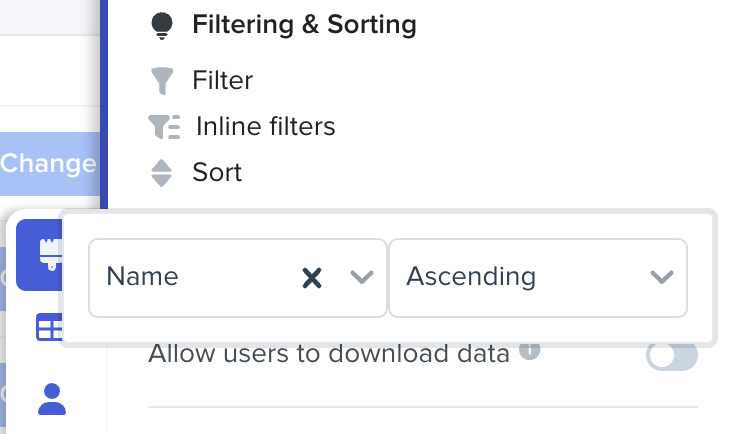
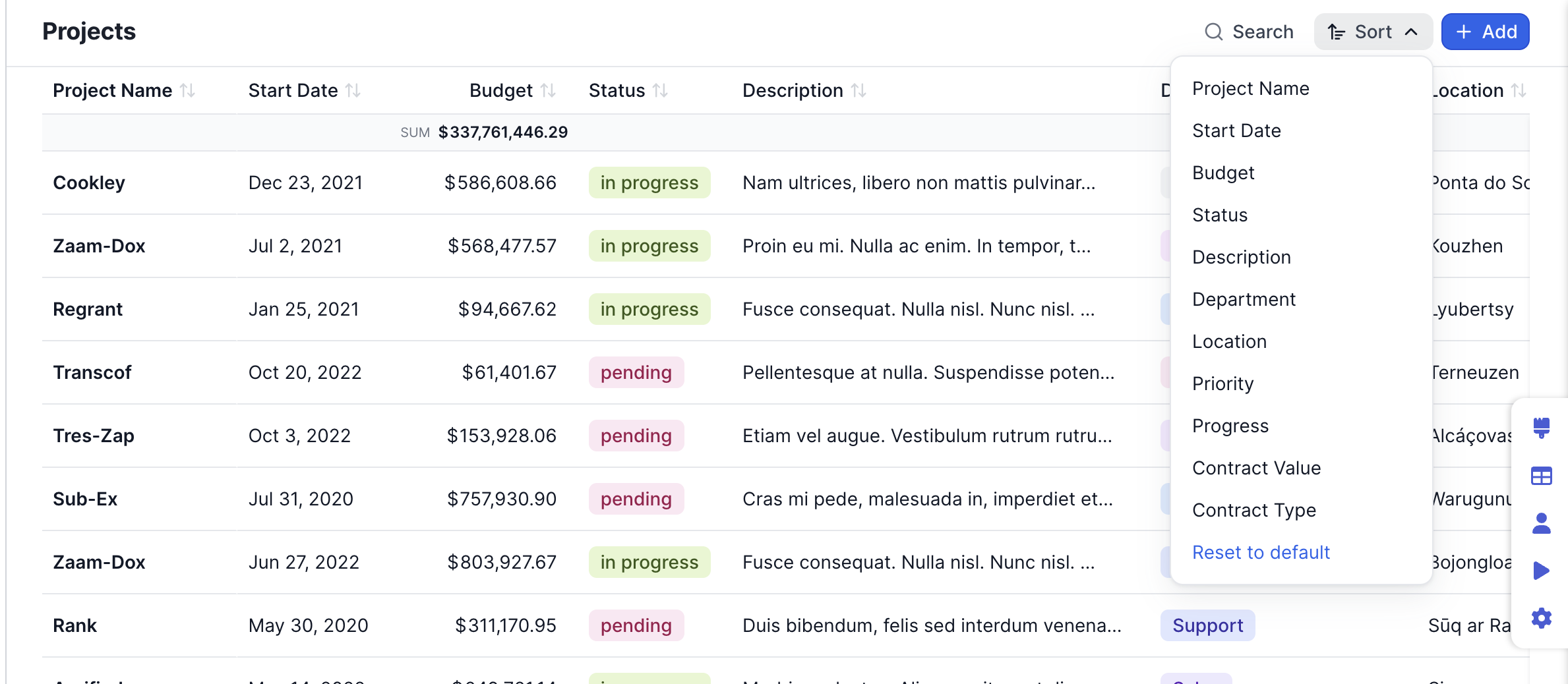
## Sort
Sort changes the order of your records in the List layout. You can sort alphabetically by a field's name, with ascending or descending values. We recommend only sorting by text or number fields.
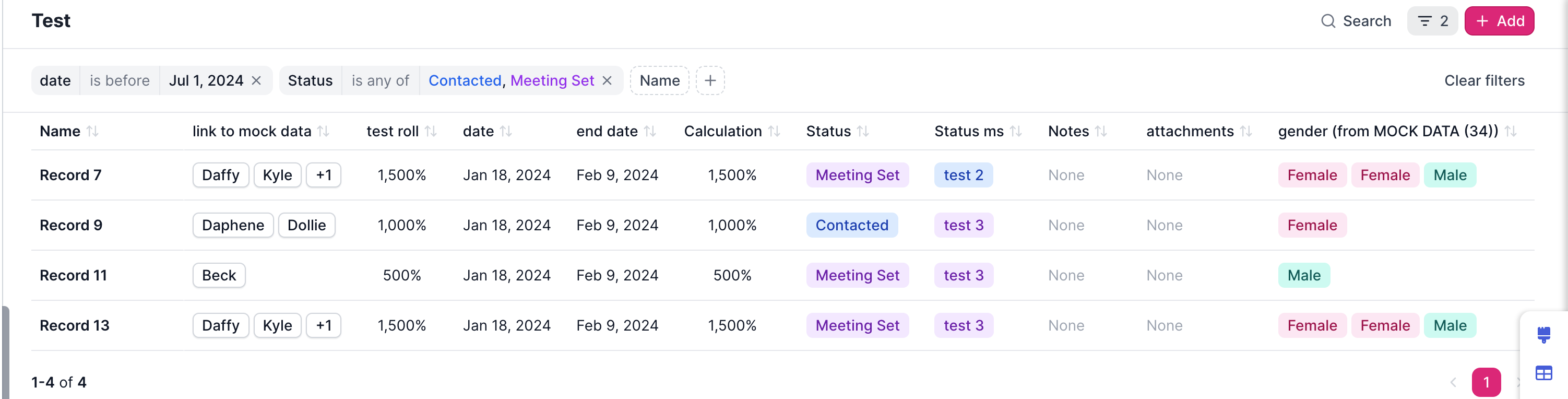
## Inline Filters
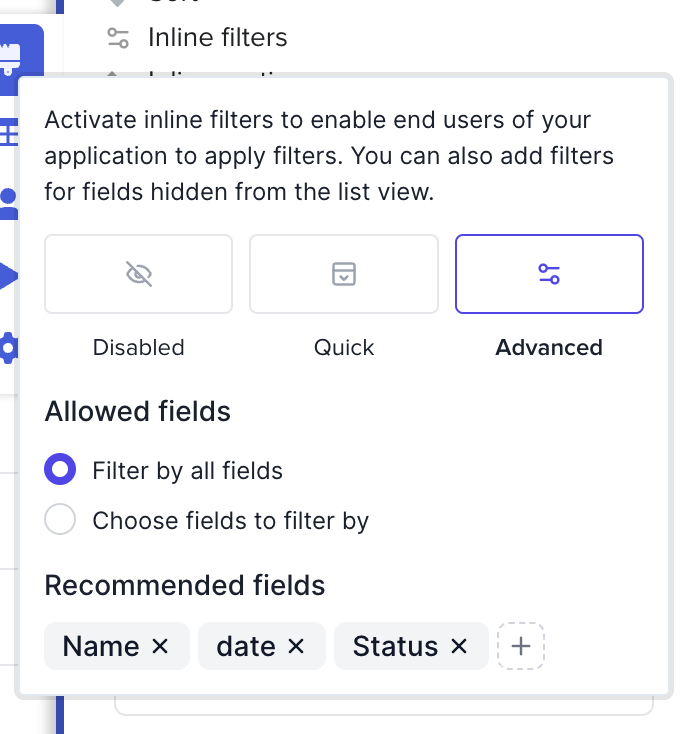
Inline filters let your app users filter list layout records based on specific fields that you choose.
Select **Inline filters** and choose between **Quick** or **Advanced** filters.
**Advanced Filters**
* Allow users to choose which fields they filter by or choose the filter displayed for the user.
* Users can change operators in advanced filters.
**Quick Filters**
* Quick option for filtering data that does not have operators.
* Show all filters or choose which filters are displayed to the user.
## Inline Sorting
Allow end users to choose how they sort by enabling "Inline sorting".
## Advanced Settings
#### Advanced options: allow users to download data
Toggling this setting on allows end users to download the list layout to a CSV. Only fields shown on the layout will download.
{% hint style="warning" %}
When using the spacious header, it is not possible to show the download button to end users
{% endhint %}
#### Duplicating list layouts
Use theduplicate layout icon to duplicate a list layout to create multiple views of the same table.
1. Select theduplicate layout icon
2. Give your new layout a name
3. Save
This will create a sub navigation item on your navigation.
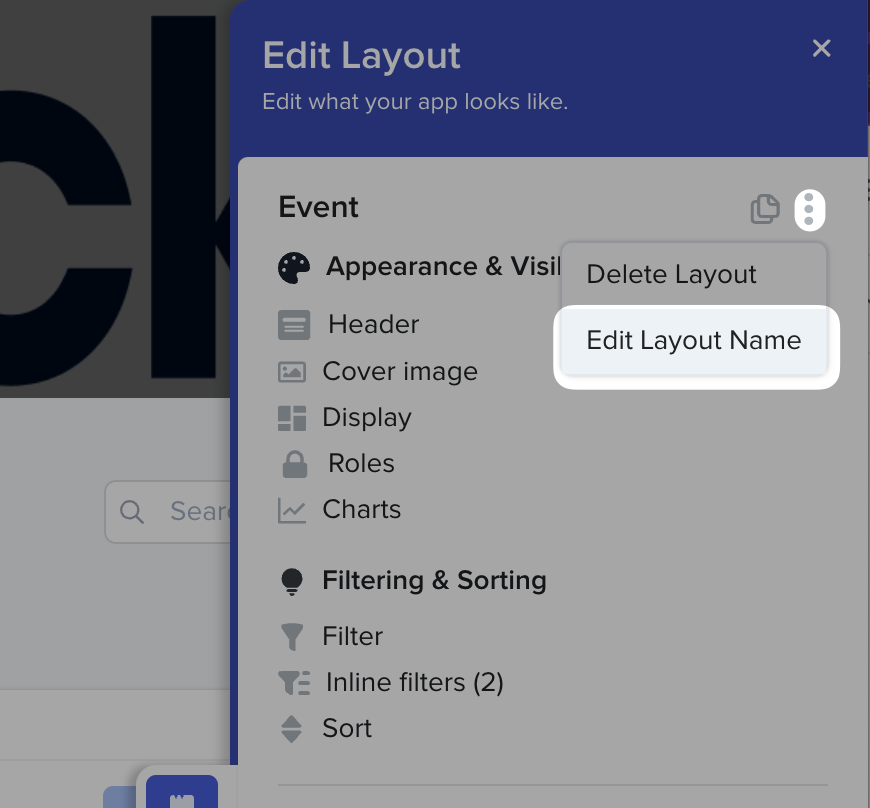
#### Edit layout name
Select the three dots on the top right to edit the layout name.
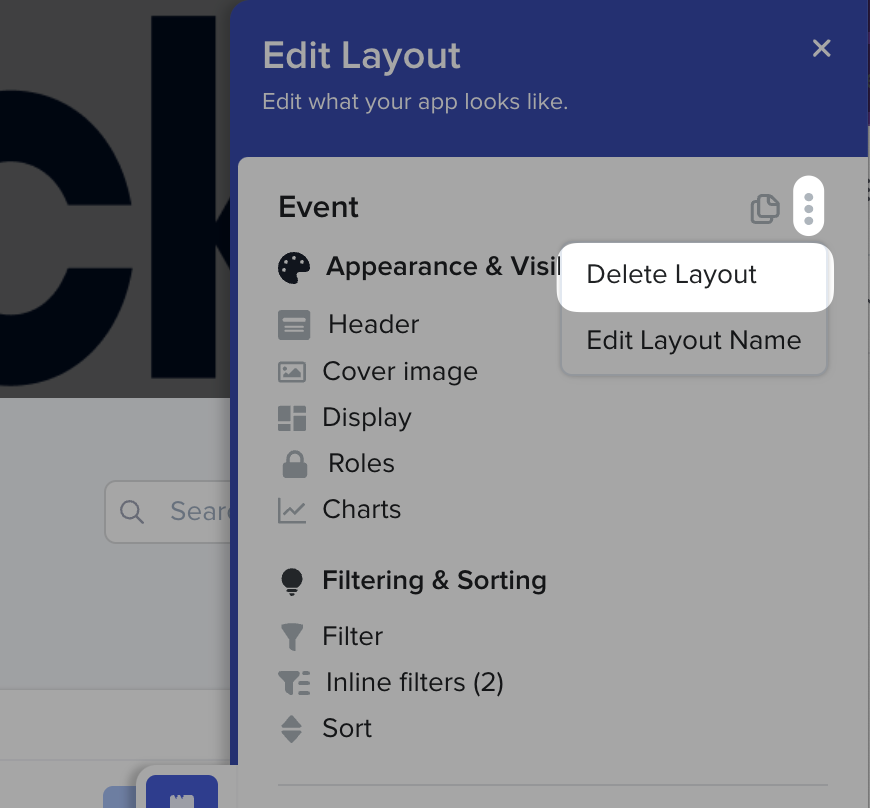
#### Delete Layout
Delete your duplicated layout by selecting the three dots on the top right.
## Content
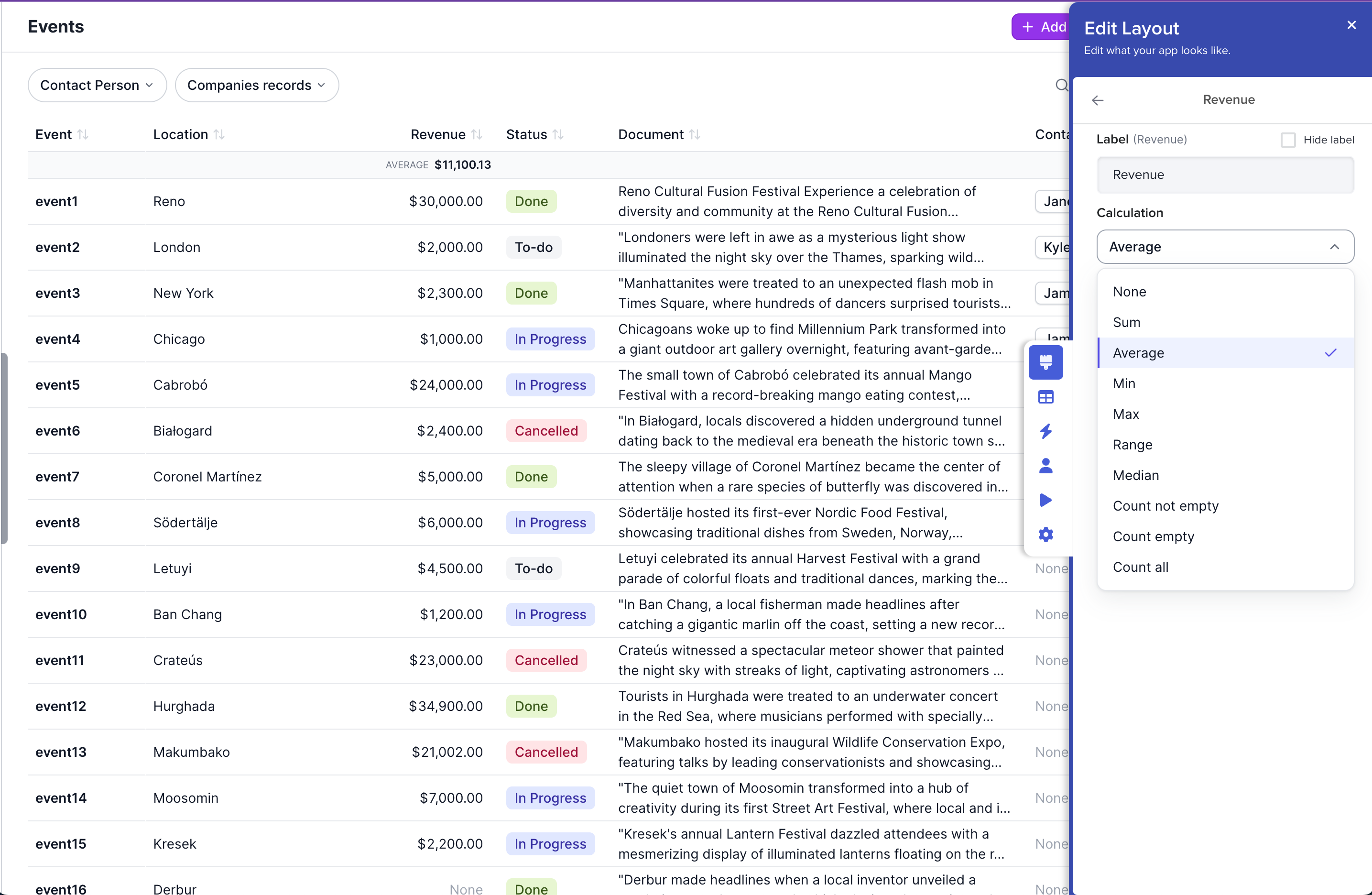
Show all fields or choose fields to display, then toggle on the fields you want to display on your list layout. Use the pencil icon next to the field to change or hide the label, change the icon, or treat as a URL it is displayed or to add as a calculation above the table.
Drag-and-drop fields to rearrange them on the layout.
Calculations can show sums or averages of number fields or count how many records have an empty or not empty field.
## Actions
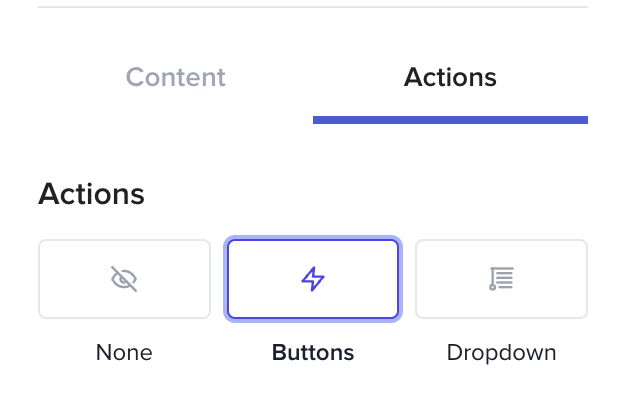
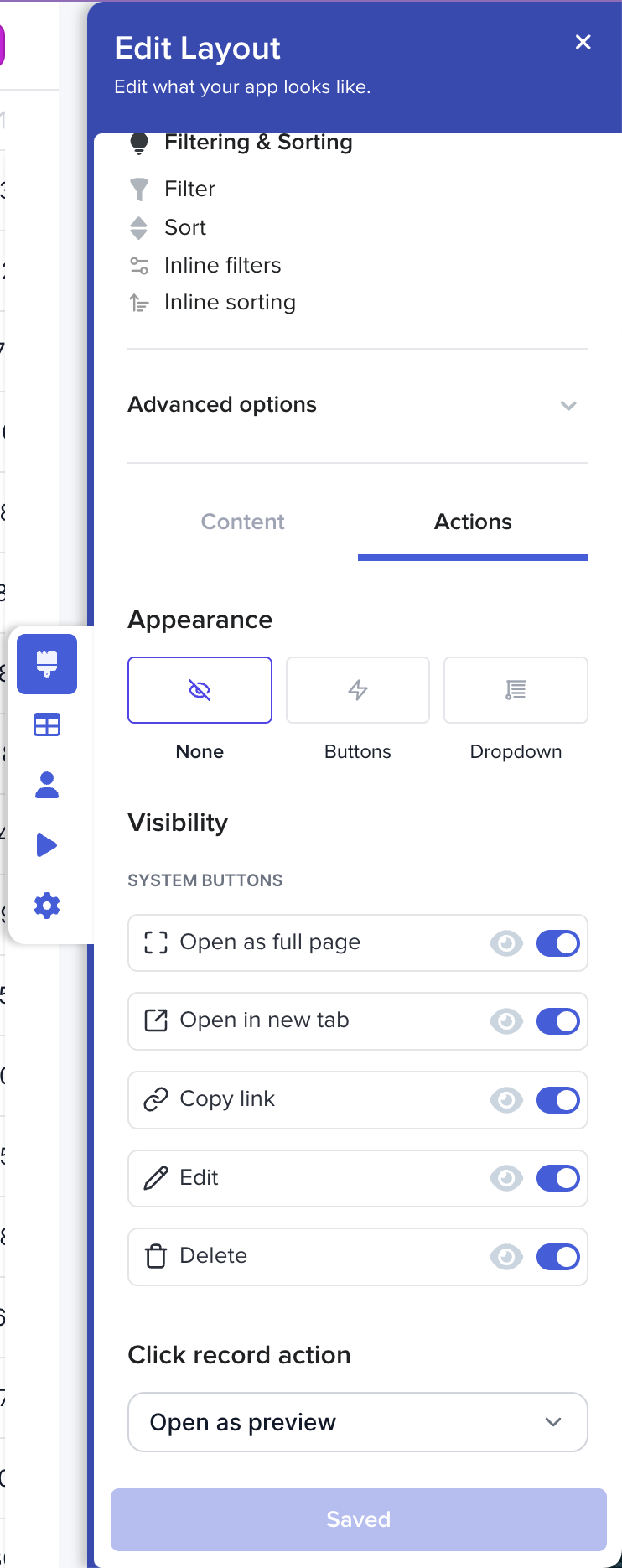
Place action buttons on your list layouts allowing users to make record updates. Show actions as buttons or options in a drop down menu:
First create an [Action button. ](https://docs.stackerhq.com/stacker/ai-and-automations/action-buttons#create-action-buttons-in-list-layout-0-0)
#### Enable Action Buttons
1. Click the **Actions** tab
2. Select to show as **button** or in the **dropdown**
3. Toggle the button on
4. Use the eye icon to set conditional visibility
## Actions - System Buttons
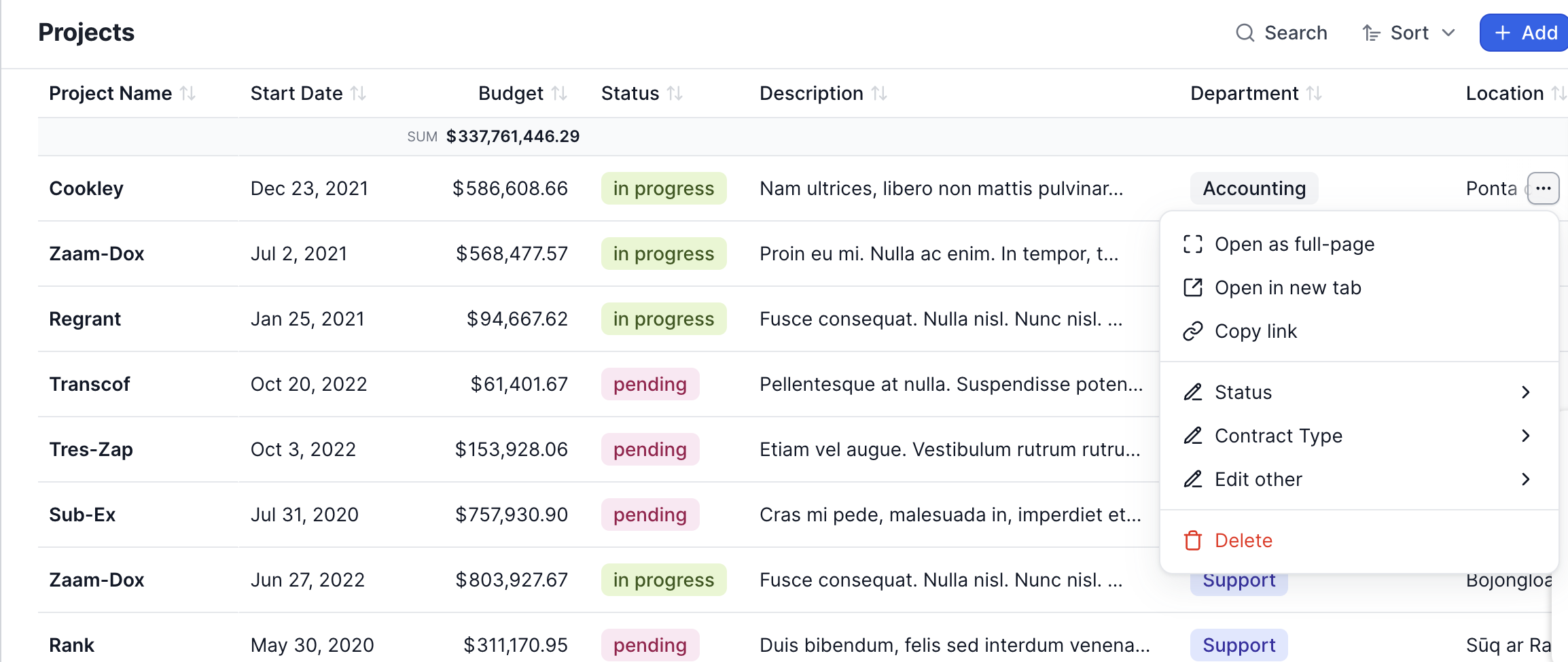
The system buttons are the three dots that appear when hovering on a record and allow quick actions
1. Go to the List Layout
2. Click the three dots on the record
3. A drop down will appear
4. Select what field you want to update or other action buttons
Toggle the options that you want to appear on the system buttons menu and set up conditional visibility:
### Click Record Action
Choose what happens when a user clicks on a record by choosing from the **Click Record Action** dropdown.
* Open Full Page
* Open as Preview
* Open in New Tab
* None
.png?alt=media&token=a64c0cff-5a77-4e6f-a618-3652ea75303b)
 **Edit Layout**
## Header
Choose a photo or color to be the header of your List Layout, add a title and subtext, choose where to align the title and where the toolbar appears on the page.
**Edit Layout**
## Header
Choose a photo or color to be the header of your List Layout, add a title and subtext, choose where to align the title and where the toolbar appears on the page.
 duplicate layout icon to duplicate a list layout to create multiple views of the same table.
1. Select the
duplicate layout icon to duplicate a list layout to create multiple views of the same table.
1. Select the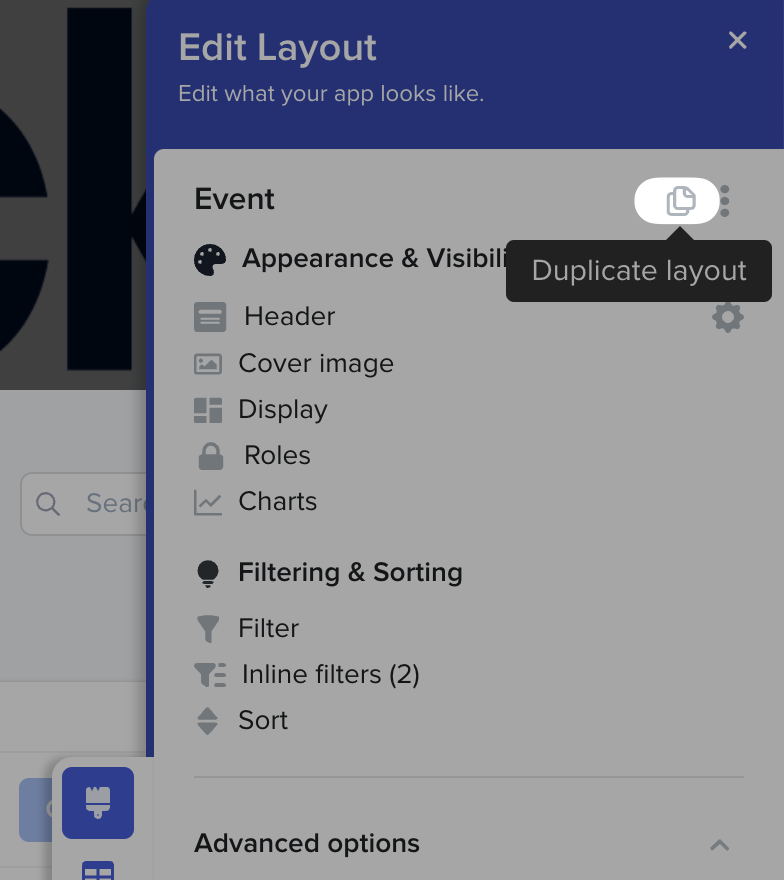
 pencil icon next to the field to change or hide the label, change the icon, or treat as a URL it is displayed or to add as a calculation above the table.
Drag-and-drop fields to rearrange them on the layout.
pencil icon next to the field to change or hide the label, change the icon, or treat as a URL it is displayed or to add as a calculation above the table.
Drag-and-drop fields to rearrange them on the layout.